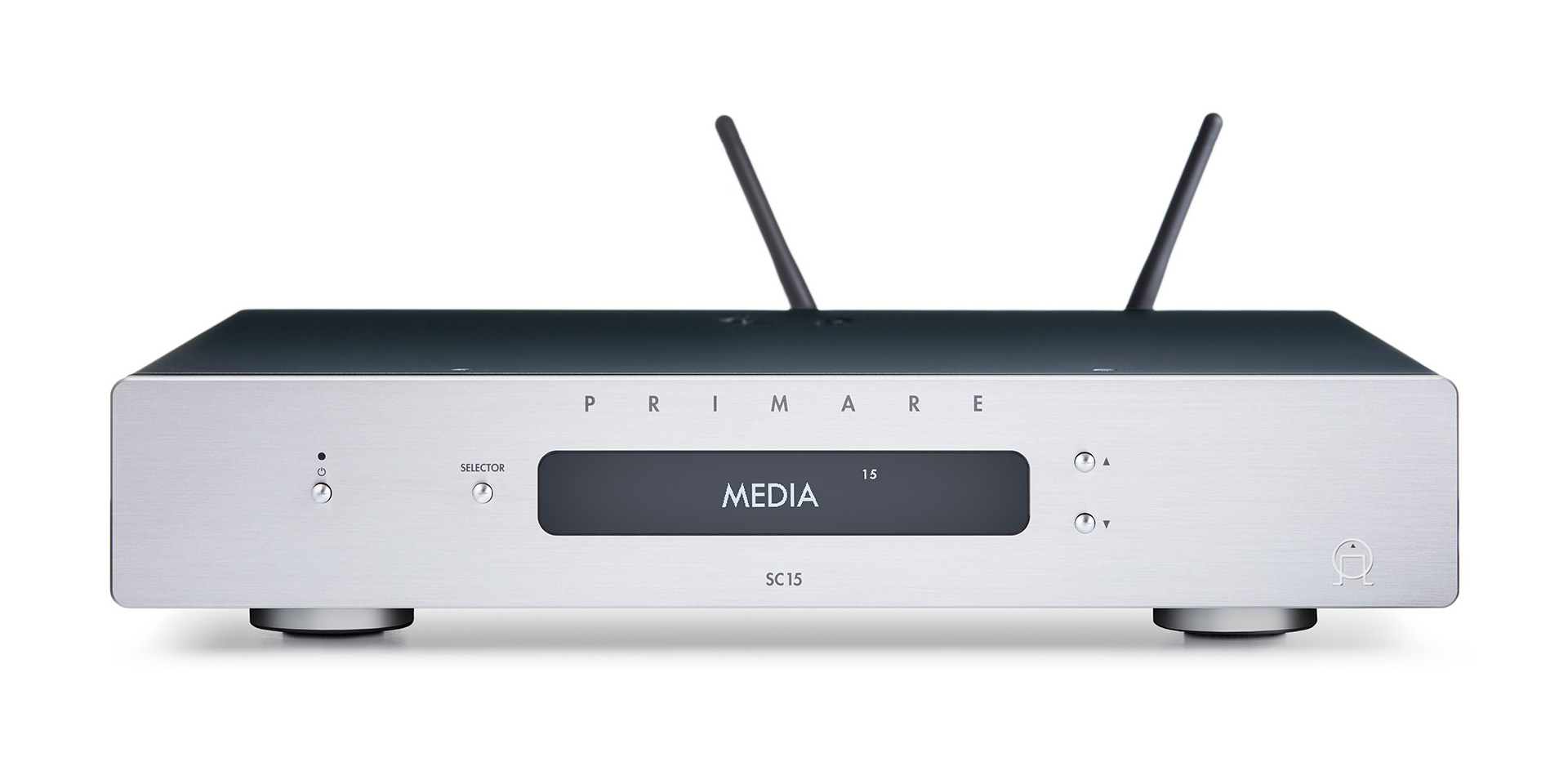
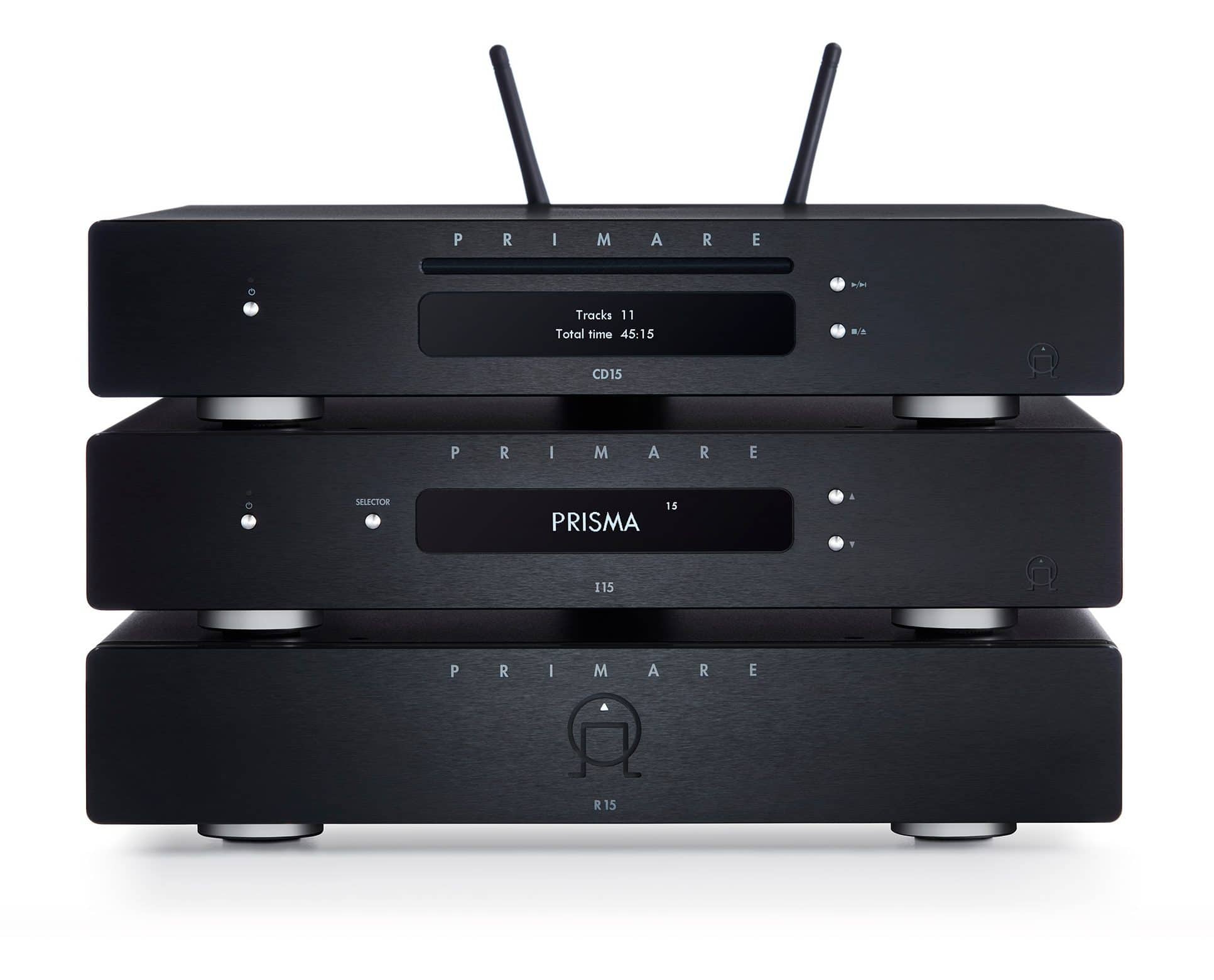

SC15 Prisma System Control Center User Guide

CAUTION

TO REDUCE THE RISK OF FIRE, REPLACE WITH THE SAME TYPE AND RATING OF FUSE.

ATTENTION

UTILISER UN FUSIBLE DE RECHANGE MÊME TYPE.

Safety compliance

This product has been designed to meet the IEC 60065 international electrical safety standard.

CAUTION

RISK OF ELECTRIC SHOCK DO NOT OPEN

ATTENTION

RISQUE DE CHOC ELECTRIQUE NE PAS OUVRIR

The lightning flash with an arrowhead symbol within an equilateral triangle, is intended to alert the user to the presence of uninsulated ‘dangerous voltage’ within the product’s enclosure that may be of sufficient magnitude to constitute a risk of electric shock to persons.

The exclamation point within an equilateral triangle is intended to alert the user to the presence of important operating and maintenance (servicing) instructions in the literature accompanying the product.

CAUTION: To reduce the risk of electrical shock do not remove cover (or back). No user serviceable parts inside. Refer servicing to qualified service personnel.

WARNING: To reduce the risk of fire or electrical shock, do not expose this apparatus to rain or moisture.

CAUTION: In Canada and the USA, to prevent electric shock, match the wide blade of the plug to the wide slot in the socket and insert the plug fully into the socket. 

This product is designed and manufactured to meet strict quality and safety standards. However, you should be aware of the following installation and operation precautions.

1. Take heed of warnings & instructions

You should read all the safety and operating instructions before operating this appliance. Retain this handbook for future reference and adhere to all warnings in the handbook or on the appliance.

2. Water and moisture

The presence of electricity near water can be dangerous. Do not use the appliance near water – for example next to a bathtub, washbowl, kitchen sink, in a wet basement or near a swimming pool, etc.

3. Object or liquid entry

Take care that objects do not fall and liquids are not spilled into the enclosure through any openings. Liquid-filled objects such as vases should not be placed on the equipment.

4. Ventilation

Do not place the equipment on a bed, sofa, rug or similar soft surface, or in an enclosed bookcase or cabinet, since ventilation may be impeded. We recommend a minimum distance of 50mm around the sides and top of the appliance to provide adequate ventilation.

5. Heat

Locate the appliance away from naked flames or heat producing equipment such as radiators, stoves or other appliances (including other amplifiers) that produce heat.

6. Climate

The appliance has been designed for use in moderate climates.

7. Racks and stands

Only use a rack or stand that is recommended for use with audio equipment. If the equipment is on a portable rack it should be moved with great care, to avoid overturning the combination.

8. Cleaning

Unplug the unit from the mains supply before cleaning.

The case should normally only require a wipe with a soft, damp, lint-free cloth. Do not use paint thinners or other chemical solvents for cleaning.

We do not advise the use of furniture cleaning sprays or polishes as they can cause indelible white marks if the unit is subsequently wiped with a damp cloth.

9. Power sources

This appliance must be connected to a mains socket outlet using the supplied power cord. To disconnect this apparatus from power, you must disconnect the power cord. Make sure the power cord is always easily accessible.

Only connect the appliance to a power supply of the type described in the operating instructions or as marked on the appliance.

This is a Class 1 device and must be earthed.

The power switch is a single-pole switch. When the switch is in the “Off” position, the appliance is not completely disconnected from the main power.

10. Power-cord protection

Power supply cords should be routed so that they are not likely to be walked on or pinched by items placed upon or against them, paying particular attention to cords and plugs, and the point where they exit from the appliance.

11. Grounding

Ensure that the grounding means of the appliance is not defeated.

12. Power lines

Locate any outdoor antenna/aerial away from power lines.

13. Non-use periods

If the unit has a stand-by function, a small amount of current will continue to flow into the equipment in this mode. Unplug the power cord of the appliance from the outlet if left unused for a long period of time.

14. Abnormal smell

If an abnormal smell or smoke is detected from the appliance, turn the power off immediately and unplug the unit from the wall outlet. Contact your dealer immediately.

15. Servicing

You should not attempt to service the appliance beyond that described in this handbook. All other servicing should be referred to qualified service personnel.

16. Damage requiring service

The appliance should be serviced by qualified service personnel when:

A. the power-supply cord or the plug has been damaged, or

B. objects have fallen, or liquid has spilled into the appliance, or

C. the appliance has been exposed to rain, or

D. the appliance does not appear to operate normally or exhibits a marked change in performance, or

E. the appliance has been dropped or the enclosure damaged.

2.4G and 5G FCC Statements

This device complies with Part 15 of the FCC Rules. Operation is subject to the following two conditions: 

  1. This device may not cause harmful interference, and 
  2. This device must accept any interference received, including interference that may cause undesired operation. 

Cet appareil est conforme à la section 15 des réglementations de la FCC. Le fonctionnement de l’appareil est sujetaux deux conditions suivantes :

  1. cet appareil ne doit pas provoquer d’interférences néfastes, et
  2. cet appareil doit tolérer les interférences reçues, y compris celles qui risquent de provoquer un fonctionnement indésirable.

Note: This product has been tested and found to comply with the limits for a Class B digital device, pursuant to Part 15 of the FCC Rules. These limits are designed to provide reasonable protection against harmful interference in a residential installation. This product generates, uses, and can radiate radio frequency energy and, if not installed and used in accordance with the instructions, may cause harmful interference to radio communications. However, there is no guarantee that interference will not occur in a particular installation. If this product does cause harmful interference to radio or television reception, which can be determined by turning the equipment off and on, the user is encouraged to try to correct the interference by one or more of the following measures: 

  • Reorient or relocate the receiving antenna. 
  • Increase the separation between the equipment and receiver. 
  • Connect the equipment into an outlet on a circuit different from that to which the receiver is connected. 
  • Consult the dealer or an experienced radio/TV technician for help.

Please take attention that changes or modification not expressly approved by the party responsible for compliance could void the user’s authority to operate the equipment.

This equipment should be installed and operated with a minimum distance 20cm between the radiator and your body.

Cet équipement doit être installé et utilisé à une distance minimale de 20 cm entre le radiateur et votre corps.

This device complies with Industry Canada licence-exempt RSS standard(s). Operation is subject to the following two conditions: 

  1. this device may not cause interference, and
  2. this device must accept any interference, including interference that may cause undesired operation of the device.

Le présent appareil est conforme aux CNR d’Industrie Canada applicables aux appareils radioexempts de licence. L’exploitation est autorisée aux deux conditions suivantes :

  1. l’appareil ne doit pas produire de brouillage, et
  2. l’utilisateur de l’appareil doit accepter tout brouillage radioélectrique subi, même si le brouillage est susceptible d’en compromettre le fonctionnement.

Under Industry Canada regulations, this radio transmitter may only operate using an antenna of a type and maximum (or lesser) gain approved for the transmitter by Industry Canada. To reduce potential radio interference to other users, the antenna type and its gain should be so chosen that the equivalent isotropically radiated power (e.i.r.p.) is not more than that necessary for successful communication.

Conformément à la réglementation d’Industrie Canada, le présent émetteur radio peut fonctionner avec une antenne d’un type et d’un gain maximal (ou inférieur) approuvé pour l’émetteur par Industrie Canada. Dans le but de réduire les risques de brouillage radioélectrique à l’intention des autres utilisateurs, il faut choisir le type d’antenne et son gain de sorte que la puissance isotrope rayonnée équivalente (p.i.r.e.) ne dépasse pas l’intensité nécessaire à l’établissement d’une communication satisfaisante.

The CE symbol indicates that this Primare product complies with the EMC (Electromagnetic Compatibility) and LVD (Low Voltage Directive) standards of the European Community.

The WEEE symbol indicates this Primare product complies with the European Parliament and Council Directive 2002/96/EC concerning Waste Electrical and Electronic Equipment (WEEE). This product must be appropriately recycled or processed in accordance with these directives. Consult your local waste disposal authority for guidance.

The RoHS symbol indicates that Primare products are designed and manufactured to comply with the Restriction of Hazardous Substances (RoHS) as stated in the European Parliament and Council Directive 2002/95/EC.

Copyright and acknowledgments

Copyright © 2017-18 Primare AB.
All  rights reserved.

Primare AB
Limstensgatan 7
21616 Limhamn
Sweden

https://primare.net

Issue: SC15Prisma/4 (20/11/2018)

The information in this guide is believed to be correct as of the date of publication. However, our policy is one of continuous development and so the information is subject to change without notice, and does not represent a commitment on the part of Primare AB.

Primare is a trademark of Primare AB. 

This guide was produced by
Human-Computer Interface Ltd.
http://www.interface.co.uk

Congratulations on selecting your new SC15 Prisma System Control Center

This user guide describes the features and explains how to set up the control center for the best sound quality and ease of operation in order to allow for the most enjoyable reproduction of sound from all your sources.

For additional support and assistance please contact your local authorized Primare dealer, or visit our website at www.primare.net.

3.1. Unpack the SC15 Prisma

Your SC15 Prisma is supplied with:

  • The Chromecast built-in Quick Start Guide
  • Mains cable
  • IR cable
  • Trigger cable
  • Antennas for Bluetooth and Wi-Fi
  • C25 remote control with batteries
  • AC Polarity Pen

If any of these items are missing please contact your supplier. We recommend you retain the packaging in case you need to transport the unit at a later date.

Note that the SC15 is supplied with a protective film on the display glass. Remove the film for a clearer whiter display.

3.2. Connect outputs

Analogue outputs

The SC15 provides a fixed-level or variable-level analogue output on the ANALOG OUT output on RCA connectors, to allow you to connect to active speakers or an analogue recorder.

Digital output

The SC15 also provides a coax digital output on an RCA connector.

3.3. Connect inputs

You can connect up to two analogue sources and up to four digital sources to the inputs on the back panel.

Analogue sources

  • Connect an analogue source to A1, using a high quality RCA cable.
  • A second analogue source can be connected to D6, using a cable terminated in a 3.5mm jack plug.

Digital sources

  • Connect digital optical sources to the digital optical inputs D2 to D4 using optical cables. D6 can be used for an additional optical source.
  • Connect a digital coax source to D5, using a digital RCA cable.

You can also connect a USB flash drive to the USB-A input, and a PC or Mac to the USB-B input to use the SC15 as an audio output device for your computer. For more information see Playing music from a drive or music server.

Streaming

You can stream music wirelessly to the SC15 from a mobile phone, tablet, computer, or other Prisma product via Bluetooth or Wi-Fi, or via a wired Ethernet connection. For more information see Streaming music from a phone, tablet, or PC.

3.4. Connect the antennae and Ethernet cable

  • Connect the two antennae supplied with the SC15 Prisma to the ANT 1 and ANT 2 sockets on the back panel, and position the two antennae at a slight angle from the vertical. The antennas are used for Bluetooth and Wi-Fi connectivity.
  • For best results we recommend connecting the SC15 Prisma to the network using an Ethernet cable. Connect the cable between your router or switch and the LAN port on the back panel of the SC15 Prisma.

3.5. Connect power

  • Plug one end of the mains cable supplied with the SC15 into the power connector on the back panel, and connect the other end to a wall socket.

If this cable is not suitable for your power outlets please contact your supplier for an alternative cable.

Note: See Phase for information about getting the best sound from your SC15.

WARNING: Always disconnect the SC15 from the mains power before connecting or disconnecting any cables.

  • Switch on the SC15, using the switch on the back panel.

To switch on from standby

  • Press on the front panel or remote control.

The display shows:

3.6. Connect to a network

The first time you start up the SC15 Prisma you will be prompted to specify how you want to connect to the network:

For best results we recommend connecting via cable.

Connecting via an Ethernet cable

To connect via an Ethernet cable select Cable.

  • Connect an Ethernet cable between your router or switch and the LAN port on the back panel of the SC15.

Using Ethernet cable connection provides immediate access to your network and the OLED display will show “LAN” in its lower right corner to indicate that a connection is established.
If the OLED display will show “Setup mode”, make sure your Ethernet cable is connected and it has a network connection.

To take advantage of Chromecast built-in related features and functionality – such as casting, voice control, and multi-room/multi-zone configuration and control – configuration must be done through Google Home app, with a Google account.

  • Install the free Google Home app on your mobile device.
  • Open the Google Home app and follow the instructions for setting up the SC15 Prisma on your network in the Chromecast Built-in Quick Start Guide, or the brief description below.
  • Enable Bluetooth and Wi-Fi on your mobile device.
  • The Google Home app will display Set up SC15 Prisma.
  • Click SET UP and follow the instructions.
  • The OLED display will show:

    and a test tone will be played and you will be prompted to select a name for your SC15 Prisma.
    If you cannot hear the test sound you may need to increase the volume on your amplifier.
  • Enter an appropriate name.

Once you have configured the SC15 Prisma using the Google Home app the “Configure network” message in the OLED display will disappear.

You will now be able to cast music to your SC15 Prisma.

To disconnect from the Ethernet network

  • Remove the Ethernet cable.

Connecting via Wi-Fi

When the SC15 Prisma is ready to be set up to your Wi-Fi, the OLED display will show:


You can connect to Wi-Fi either by using iOS AirPlay speaker setup, Prisma Android app or Google Home app.

Please note, to take advantage of Chromecast built-in related features and functionality – such as casting, voice control, and multi-room/multi-zone configuration and control – set up and configuration must be done through Google Home, with a Google account.

AirPlay speaker setup

Go to the Wi-Fi menu under Settings on your iOS device. Select the Prisma model you wish to setup under “SET UP NEW AIRPLAY SPEAKER…” at the bottom of the list. Select the Wi-Fi you want your SC15 Prisma to connect to and select “Next”. Follow the instructions on the screen to complete setup.

Prisma Android app

Open the Android Prisma app and following the instructions found at the link in the discovery page.

Google Home app

  • Make sure Bluetooth and Wi-Fi are enabled on your mobile device.
  • Install the free Google Home app on your mobile device.
  • Open the Google Home app and follow the instructions for setting up the SC15 Prisma on your network in the Chromecast Built-in Quick Start Guide, or the brief description below.
  • Run Google Home.

The Google Home app will display Set up SC15 Prisma.

  • Click SET UP and follow the instructions.
  • The OLED display will show:

    and a test tone will be played and you will be prompted to select a name for your SC15 Prisma.
    If you cannot hear the test sound you may need to increase the volume on your amplifier.
  • Enter an appropriate name.
  • Select the Wi-Fi network your SC15 Prisma should connect to.

    Once you have configured the SC15 Prisma using the Google Home app the “Configure network” message in the OLED display will disappear.

    You will now be able to cast music to your SC15 Prisma.

    To disconnect from the Wi-Fi network

    Either:

    • Select Wi-Fi settings for the SC15 Prisma in the Google Home app.
    • Select Forget this network.

    Or:

    3.7. Download the Prisma app

    To view and change the SC15 Prisma settings you need the Primare Prisma app, which is available for free download on iOS devices from the Apple App Store and on Android devices from the Google Play Store.

    In either case search for Primare Prisma to find the app.

    The following diagram explains the function of each of the connectors on the back panel:

    Using the remote control

    Selecting SC15 mode

    The remote control can operate any associated Primare products you have in your system.

    To make the remote control operate the SC15

    • Press the CD SC button twice.

    To make the remote control operate another product

    • Press the AMP AV, CD SC, or PRE AUX button as appropriate.

    Press once to select the product on the top line of the button, or twice to select the product on the second line.

    The indicators at the top of the remote control light when pressing a button to show which mode the remote control is in.

    Fitting the batteries

    Before using the remote control you need to insert the two AAA cells supplied with the C25.

    • Open the cover on the back of the remote control by pressing the back cover gently near the centre of the remote control, and sliding it towards the edge of the remote control.
    • Insert the two batteries, with the polarity as indicated on the bottom of the battery compartment.
    • Replace the cover and push until it clips into place.

    Note: Replace only with 1.5V alkaline cells type AAA or equivalent.

    When disposing of old batteries please be considerate to the environment.

    6.1. Front panel controls

    Standby

    Switches the SC15 to standby, or switches it on from standby.

    SELECTOR

    Steps between inputs.

     and

    Change the volume.

    Settings menus

    Pressing  and simultaneously displays the settings menus or exits from the menus.

    In the settings menus:

    Pressing  or steps between the settings.

    Pressing SELECTOR selects a setting or saves an edited setting.

    Holding down SELECTOR navigates back or cancels editing a setting.

    6.2. Changing the volume

    The SC15 allows you to vary the volume from 0 (silence) to 99 (maximum).

    To change the volume

    • Press the  or buttons on the front panel, or press the + or buttons or the  or buttons on the remote control.

    The current volume setting is shown on the front panel; for example:

    6.3. Selecting a source

    The SC15 provides a choice of seven inputs. Initially these are labelled as shown in the following table, but you can give them your own aliases to suit the sources in your system; see Alias.

    Label Description
    A1 Analogue on RCA connectors.
    D2–D4 Digital optical on TOS connectors.
    D5 Digital coax on RCA connectors.
    D6 Digital optical or analogue on a 3.5mm jack.
    PC/MAC (7) Digital on a USB-B connector.

    To select a source

    • Press the SELECTOR button on the front panel until the source is indicated on the front panel display; for example:

    • Alternatively, press the or buttons on the remote control to step between sources, or press one of the buttons 1 to 7 on the remote control to select the corresponding source directly.

    6.4. Changing the display brightness

    To change the front panel display brightness

    • Press the DIM button on the remote control to step through the three levels of illumination and blank.

    If you turn the display off it will be restored briefly when you operate any control.

    The display automatically dims after ten minutes; you can adjust this delay in the settings menus; see General settings.

    These methods of playing music from the SC15 involve connecting the source to the SC15 via a cable, and don’t require Wi-Fi, Ethernet, or Bluetooth.

    To play music from a source

    • Connect the source via a suitable cable:
    Source Cable
    Analogue Phono RCA cable
    Digital optical Digital optical cable
    Digital Digital coax cable
    • Select the source from the front panel, or using the remote control.

    If you have a phone or tablet on the same Wi-Fi network as the SC15 you can also use the Prisma app to select and control sources.

    To use the SC15 as a PC/Mac sound output device

    • Connect the Mac or PC to the SC15 via a USB-A to USB‑B cable.

    PC

    Windows 7, 8, 8.1, or 10 (32/64-bit) is required. You need to install the Primare xmos audio driver, available on primare.net.

    Macintosh

    OSX 10.4 or later is recommended. No driver is required.

    • Connect the computer’s USB port to the USB B input on the SC15 using a USB A to USB B cable. 

    The SC15 will then appear as a sound output device called SC15 in the Sound control panel (PC) or Sound system preferences panel (Macintosh).

    • Select the PC/MAC source on the SC15.
    • Select the SC15 as the sound output device in the Mac Sound system preferences panel or the PC Sound control panel.

    You can play audio files from a USB flash drive, external USB hard disk, or a network drive. These options are ideal if you already have a digital library of CDs or music files.

    On a USB flash drive or USB hard disk the files can be organised into folders, giving you one way of classifying your music; eg by Artist.

    On a NAS drive you have the option of running a media server program, which will catalogue your music library and give you the option of organising it in different ways; eg by Artist, Genre, Album, or Composer. One free option is MinimServer; see http://minimserver.com/.

    To play audio files from a USB flash drive or hard drive

    • Connect the USB drive to the USB-A input on the SC15. 

    The USB drive can contain folders and music files in any of the popular formats; see Technical specification for details.

    • Use the Prisma app to browse, play, and control the music.

    To play audio files from a NAS (network) drive

    • Connect the NAS drive to the same network as the SC15.

    The NAS drive can either contain folders and music files in any of the popular formats, or it can run a music server. See Technical specification for details of the supported file formats.

    • Use the Prisma app to browse, play, and control the music.

    Alternatively you can select and play music from a Mac or PC using a music server program such as JRiver or Foobar2000.

    The SC15 can use Chromecast to connect directly to a music service that supports Chromecast, such as Spotify, Deezer, Tidal, or TuneIn Radio. The music is streamed direct to the SC15; once set up you can use your phone to make calls, or play other audio.

    With a phone, tablet, or Mac/PC you can also play the audio wirelessly to the SC15, using Bluetooth or AirPlay (iOS only), so the sound from any apps you run on your device will be played through the SC15.

    Although you can stream music over Wi-Fi, for best results connect the SC15 to your home router via an Ethernet cable. If necessary, use the Google Home app to configure the network settings on your SC15.

    To stream using Chromecast

    The SC15 has Chromecast built-in, which means you can stream (cast) music over your network directly to the SC15 from any Chromecast supported music service, using the music service’s app on your desktop or mobile device as a controller.

    • Click the Cast button within your music service’s app and select the SC15 in the device list.

    To stream using AirPlay

    Use AirPlay to send audio over the network from your Apple device to the SC15. AirPlay is only available on Apple devices.

    To stream using Bluetooth

    Use Bluetooth to send audio directly to the SC15 from your Bluetooth device using Bluetooth connection. You don’t need a network to stream using Bluetooth.

    To stream using Spotify Connect

    The SC15 supports Spotify Connect, which means you can stream music directly to the SC15 from the Spotify music service over your network, using the Spotify app on your desktop or mobile device as a controller.

    Use your phone, tablet, or computer as a remote control for Spotify. Go to http://spotify.com/connect to learn how.

    10.1. Using the settings menus

    You can view and change the SC15 settings from the front panel, remote control, or using the Prisma app.

    To display the settings menu

    • Simultaneously press the and buttons on the front panel, or press the MENU button on the remote control.

    The settings menu is displayed:

    To step between settings

    • Press the or buttons on the front panel or remote control.

    The current setting is shown highlighted.

    To change a setting

    • Press the SELECTOR button on the front panel or the SELECT button on the remote control.

    The current value is shown highlighted.

    • Press the or buttons on the front panel, or the or or or buttons on the remote control, to change the value of the setting.

    As you change it the new value is shown in the menu.

    • Press the SELECTOR button on the front panel or the SELECT button on the remote control to save the value you have set.

    To navigate back or cancel editing a setting

    • Press and hold the SELECTOR button on the front panel, or press the  button on the remote control.

    To exit from the settings menu

    • Simultaneously press the or buttons on the front panel, or press the MENU button on the remote control.

    10.2. INPUT SETTINGS

    The INPUT SETTINGS menu allows you to customise the inputs to suit the sources in your system:

    INPUT

    Initially the INPUT SETTINGS shows the settings for the currently selected input. Alternatively the INPUT option allows you to step between all the inputs. The subsequent options will change according to the input.

    ALIAS

    Allows you to give the source a name; eg RADIO.

    • Highlight the ALIAS item then press the SELECTOR button on the front panel, or the SELECT button on the remote control.

    The RENAME INPUT menu is displayed:

    • Press the or buttons on the front panel, or or buttons on the remote control, to select the first letter.
    • Press the SELECTOR button on the front panel or the SELECT button on the remote control, to select it.

    After adding each character you have the options:

    ADD NEW CHARACTER
    CONFIRM ‘A’
    CLEAR ALIAS

    where CONFIRM shows the alias you have entered so far.

    • Select ADD NEW CHARACTER to add the remaining letters, up to a maximum of six characters.
    • Select CONFIRM when you have entered the alias you want.

    STATUS

    Choose between ENABLED (default) or DISABLED to specify whether the input is enabled.

    AUTO SENSE

    Choose between: SELECT to automatically select an input containing an audio signal if the SC15 is on; WAKE+SELECT to automatically wake up the SC15 from standby, if necessary, and select an input containing an audio signal; and OFF (default) to disable automatic switching.

    VOLUME

    Choose between VARIABLE (default) or FIXED to specify whether the input should have variable or fixed gain.

    FIXED is 0dB gain, equivalent to volume setting 66, and will overrule MAXIMUM VOLUME in AUDIO SETTINGS.

    Selecting FIXED will show a loud-volume warning. Select YES to proceed or NO to cancel the fixed gain setting.

    Fixed gain functions as an SSP (Surround Sound Pass-through) allowing the SC15 to be used as an amplifier in a multi-channel system setup

    INPUT GAIN

    Choose between: -30dB to -1dB, 0dB (default), or +1dB to +30dB to set the gain for the selected input.

    If the gain is set too high on an input clipping may occur.

    10.3. AUDIO SETTINGS

    The AUDIO SETTINGS menu allows you to customise the balance and start-up volume, and the maximum and mute volume.

    BALANCE

    Allows you to adjust the balance between 00LR-9 (far left), 00LR00 (centred, default) and -9LR00 (far right).

    STARTUP VOLUME

    Sets the general startup volume to between 0 and 60. The default is 20.

    MAXIMUM VOLUME

    Set maximum volume limit between 0 and 99. The default is 99.

    MUTE VOLUME

    Sets the volume when unit is muted. You can choose between 0 (default) and 30.

    If the current volume is lower than the specified MUTE VOLUME, the volume will be set to 0 when pressing mute.

    ANALOG OUTPUT

    Choose PRE (default) to set the analogue output to variable or LINE for a fixed 0dB output. For safety the setting reverts to PRE after the power is disconnected.

    10.4. GENERAL SETTINGS

    The GENERAL SETTINGS menu allows you to configure the general operation of the SC15:

    SHOW INPUTS

    Choose between ALL (default), to show all inputs, or WITH SIGNAL, to show only inputs that have a signal.

    FRONT PANEL

    Choose LOCKED to lock the front panel buttons, or UNLOCKED (default) to use them.

    To unlock the front panel buttons use the remote control to select this menu, or remove power from the SC15 for a few seconds.

    AUTO-DIM

    Allows you to choose the delay for dimming the display after no user interaction, between: AFTER 1MIN, AFTER 5MIN, AFTER 10MIN (default), or OFF.

    STANDBY SETTINGS

    Displays the STANDBY SETTINGS menu to allow you to specify the standby settings.

    STANDBY MODE can be set to ECO to reduce the standby consumption to less than 0.5W, but only allows the SC15 to wake from the analogue and digital inputs, or NORMAL which also allows the SC15 to wake from streaming and the PC/MAC input.

    AUTO-STANDBY automatically switches the SC15 to standby if there is no user interaction or audio from the current source for a specified delay: AFTER 10MIN, AFTER 15MIN, AFTER 20MIN (default), or OFF.

    Note: The AUTO-STANDBY function will be disabled if the network has not been set up.

    FACTORY RESET

    Resets the SC15 to the factory default settings.

    You are prompted to confirm. Select YES to proceed or NO to cancel.

    FIRMWARE VERSIONS

    Displays the FIRMWARE VERSIONS menu to allow you to view the versions of firmware installed.

    10.5. STREAMING SETTINGS

    Allows you to configure the SC15 streaming:

    METADATA

    Allows you to choose ON (default) or OFF to specify whether metadata, such as the artist name and song title, should be displayed.

    BLUETOOTH SETTINGS

    Displays the BLUETOOTH SETTINGS menu.

    VISIBLE can be set to ON to make the SC15 visible to other Bluetooth devices, or OFF (default) to make the SC15 not visible.

    Note: VISIBLE allows any Bluetooth-enabled device within range to discover and pair with your SC15.

    AUTO-CONNECT can be set to ON to automatically reconnect to a paired mobile Bluetooth device when the Bluetooth input on the SC15 is selected, or OFF (default) to disable automatic connection.

    AIRPLAY PASSWORD

    Allows you to set an optional password for connection by AirPlay. Leave empty for no password.

    10.6. NETWORK SETTINGS

    Allows you to configure the network connection:

    QUICK INFO

    Shows the NETWORK INFO screen with the following information:

    • Connection: one of CONNECTED BY WIFI, CONNECTED BY CABLE, or NOT CONNECTED.
    • NETWORK, the current SSID.
    • IP, the current IP address.
    • DEVICE NAME, the device name.
    • NET MAC, the network MAC address.
    • BT MAC, the current Bluetooth MAC address.

    You can also display this information by holding down the i button on the remote control.

    NETWORK MODE

    Allows you to select between WiFi or Cable to specify how to connect to the network.

    Analogue inputs

    1 x RCA, 9.5kΩ impedance.

    1 x 3.5mm stereo jack, 15kΩ impedance.

    Analogue outputs

    Preamplifier output

    1 x RCA, 150Ω impedance.

    Digital inputs

    3 x Optical/TOSLINK 192kHz/24bit

    1 x RCA 192kHz/24bit

    1x USB-A up to 192kHZ/24bit; up to DSD128 (5.6MHz)

    1x USB-B up to 768kHz/32bit; up to DSD256 (11.2MHz)

    Digital outputs

    1x RCA

    Analogue input = 48kHz

    Digital input = native output

    1x Wireless stereo output using WiSA® technology (future software upgrade)

    Performance

    Gain

    Preamplifier output: 16.5 dB

    Analogue frequency response

    20Hz – 20kHz -0.5dB

    Distortion

    THD + N: < 0.05%, 20Hz – 20kHz

    Signal to Noise

    Digital: >90 dB

    Analogue: >80 dB

    Network

    Connectivity 

    1 x Ethernet LAN port

    2 x Antennas for Bluetooth and Wi-Fi

    LAN: 10/100Mbit Ethernet port

    WLAN: IEE 802.11 a/b/g/n/ac compliant; 2.4/5GHz; b, g, n mode

    Audio formats

    WAV, LPCM, AIFF, FLAC, ALAC, WMA, OGG: Up to 192kHz/24bit

    MP3, MP4 (AAC): Up to 48kHz/16bits, VBR & CBR 320kbps

    DSD: Up to DSD128 (5.6MHz)

    Streaming

    Airplay®

    Bluetooth®

    Chromecast built-in®

    Spotify Connect®

    DLNA/UPnP

    General

    Control

    C25 system remote control
    RS232
    IR in/out
    Trigger out

    Power consumption

    Off: 0W
    Standby (ECO): 0.45W
    Operating: <12W

    Dimensions 

    350 x 329 x 73 mm (wxdxh) with knobs and connectors

    350 x 310 x 73 mm (wxdxh) without knobs and connectors

    Weight

    6 kg

    Colour

    Black or titanium

    These instructions help you get the best possible sound from your SC15.

    Phase

    The phase of the AC supply can make a significant difference to the sound.

    Use the Polarity Pen supplied with the SC15 to verify which pin is live on your AC power cable.

    Ensure that the live pin of the AC power cable is connected to the left-hand pin of the power connector, viewed from the back panel:

    Burn-in

    Your Primare will start to sound best after an initial burn-in of approximately 24 hours.

    You will notice a further smaller improvement in sound quality for at least another 3 days’ playing.

    RS232 and trigger

    The RS232 input allows you to connect the SC15 to a controller system. Use a twisted (null modem) cable. For more information contact Primare at info@primare.net or visit www.primare.net.

    The Trigger output allows the SC15 to switch on other devices, such as a DD15.

    Using the SC15 with a DD15

    Your SC15 is an ideal companion to the Primare DD15 CD Transport. For best results link the two products together as follows using the two cables supplied with the SC15:

    To connect the trigger cable

    The Trigger cable ensures that the DD15 switches on, or to standby, when you operate the  button on the front panel of the SC15.

    • Connect the Trigger cable from the SC15 TRIG OUT to the DD15 TRIG IN.

      Factory reset

      Press and hold the standby button on the front panel to display the main firmware version number.

      Press and hold the standby button on the front panel for 10 seconds to perform a factory reset of the SC15.

      You can also do a factory reset from the Prisma app, or from the GENERAL SETTINGS menu; see General settings.

      Network troubleshooting

      Front panel display

      The front panel display indicates the type of network connection:

      LAN indicates that you are connected by an Ethernet cable.

      WiFi indicates that you are connected by wireless. 

      Network status

      The CON indicator on the back panel indicates the network status:

      ON Indicates the SC15 is connected to a network

      OFF Indicates no connection to a network

      Flashing indicates that the network needs to be configured using the Google Home app.

      Spotify Connect

      The Spotify Software is subject to third party licenses found here: 

      https://beta.developer.spotify.com/private-documentation/esdk-third_party_licenses

      Translate

      You can use Google Translate to translate the contents of the Primare website. To do that, select the language you would like to translate into in the list below.

      Please bear in mind, since the Google Translate is an automatically generated translation, we do not take any responsibility for errors in the text.